



How to Pair Your Bluetooth Device with GMC IntelliLink
Have you recently purchased a GMC SUV or truck that’s equipped with the IntelliLink® Infotainment System?
Of its many innovative features, Bluetooth accessibility is perhaps the most useful and convenient for drivers. Robert Brogden GMC in Olathe, KS is here to help you get started with pairing your phone or device with your GMC IntelliLink system.
Should you have any questions about pairing your phone with IntelliLink®, please don’t hesitate to contact the team at our GMC dealership in Olathe, KS by using our online form or calling 913-712-9342.
First Steps
Before pairing your phone or other Bluetooth device with your GMC vehicle, you will need to adjust some settings on the device. Make sure your Bluetooth is set to ‘active’ or ‘on’. You can find this in your settings. You’ll also want to make sure your phone is ‘discoverable’. This is to ensure it can be found and recognized by other Bluetooth systems. Please note that this process will differ depending on the device you’re using. If all else fails, consult your device’s instruction manual or customer service help line.
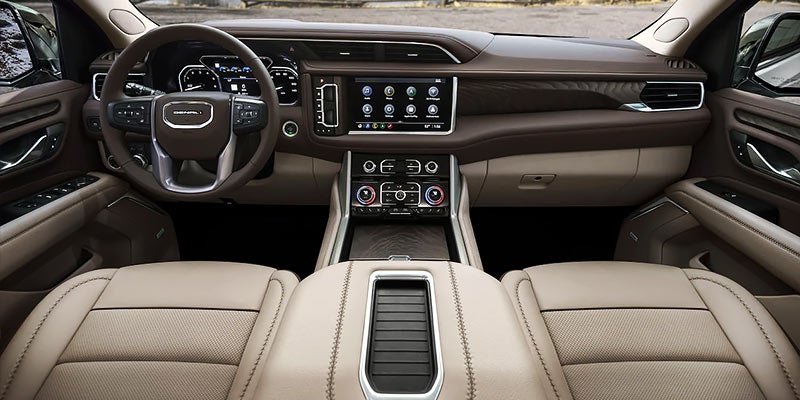
Pair Your Device with the IntelliLink 7-in. Color Touch Screen
Available on GMC Terrain
GMC Terrain drivers are able to pair their device by voice commands or through the infotainment screen.
To pair via voice command:
- Press the ‘Push to Talk’ button on the screen, and say ‘Bluetooth’. The system will respond by saying ‘Bluetooth ready’.
- Wait for the beep, and then say ‘Pair’.
- The system will respond with ‘Please start a search on your Bluetooth phone’.
- Search for possible Bluetooth connections on your phone or device. Select your vehicle from the available options.
- You will be asked to enter a 4-digit or 6-digit code to confirm pairing is successful.
To pair via infotainment screen:
- In the controls located in the center of the instrument panel, push either the ‘Config’ or the ‘Phone’ button.
- Using the control knob marked ‘Menu,’ select ‘Phone Settings’ on the screen.
- Select ‘Pair Device’.
- The display screen will prompt you to start a Bluetooth search on your phone and provide a 4-digit pin.
- Start the pairing process on the device.
- Locate and select the device named after the vehicle make and model on the device. Follow the instructions on your device to enter or confirm the PIN shown on the vehicle’s screen.
- If prompted by the device to accept the connection or allow phone book access/download, select ‘always accept’ or ‘allow’.
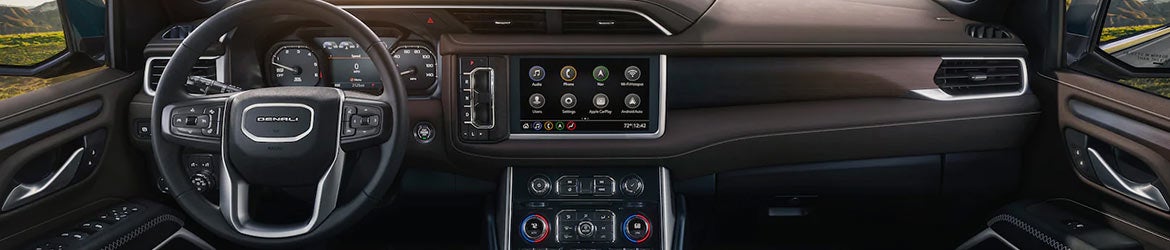
Pair Your Device with the IntelliLink 7- or 8-in. Color Touch Screen
Available on all other GMC vehicles
Pairing your device with other GMC models is slightly different, so follow the directions below to be on your way to Bluetooth streaming.
To pair via voice command:
- Press the ‘Push to Talk’ button on the screen, and say ‘Bluetooth’. The system will respond by saying ‘Bluetooth ready’.
- Wait for the beep, and then say ‘Pair’.
- System will respond with ‘Please start a search on your Bluetooth phone’.
- Search for possible Bluetooth connections on your device. Select your vehicle from the available options.
- If your phone supports Simple Secure Pairing (SSP), it will pair with the device.
- If your device does not support SSP, you will be asked to enter or confirm a code, which will be displayed on the infotainment screen.
- If prompted by the phone to accept the connection or allow phone book access/download, select ‘Yes,’ ‘Always accept,’ or ‘Allow’ in order to utilize contact dialing within the vehicle.
To pair via infotainment screen:
- Press the ‘Home’ button.
- Touch the ‘Phone’ screen icon, or press the phone button.
- Select the ‘Search Device’ option on the touchscreen menu.
- Select the device you wish to pair from the touchscreen menu.
- If your phone supports Simple Secure Pairing (SSP), it will pair with the phone.
- If your phone does not support SSP, you will be asked to enter or confirm a code displayed on the infotainment screen.
- If prompted by the phone to accept the connection or allow phone book access/download, select ‘Yes,’ ‘Always accept,’ or ‘Allow’ in order to utilize contact dialing within the vehicle.